The “Request Management” function is the central control and management tool for supervisors. Through a user-friendly environment, you can have full supervision of your partners’ requests (licenses, overtime, remote work, etc.), ensuring the smooth operation of your team from wherever you are.
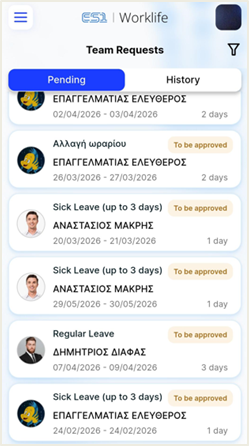 Request Overview
The home screen is designed for quick reporting, splitting requests into two main tabs:
Pending: Here are all requests waiting for your approval or rejection. Each request includes the employee's name, request type, dates and duration (depending on the type).
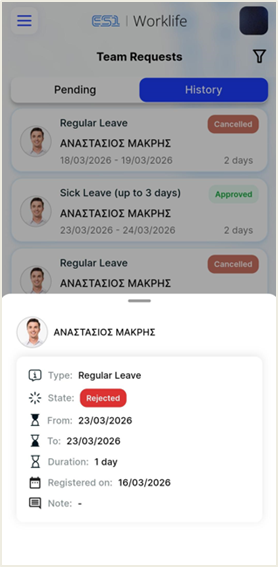
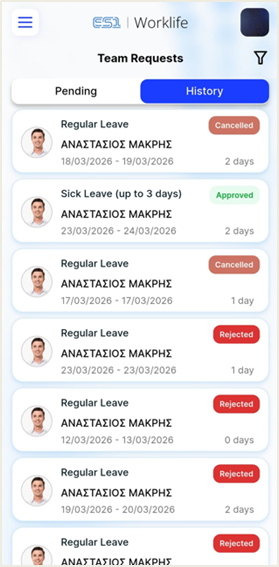 History: Here you can see the file with completed requests, including those that have already been approved, rejected or canceled.
To quickly locate specific entries, you can use the filter icon  .
.
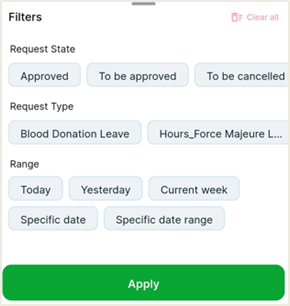 State & Type: You can filter the list by selecting only the requests that are at a specific stage (e.g. “Approved”) or for a specific category (e.g. only “Standard leave”). Please note that only types that have already been registered at least once in the past are shown in the selection list of “Request Type”.
Time Ranges: Default options such as “Today”, “Yesterday”, “Current week”, “Specific date” or “Specific date range” are provided to limit the results.
Clean all: For your convenience, the “Clean all” option has been added. This action resets all applied filters to zero at the same time and returns the list to its full, original view without having to de-select each criterion separately.
 Request Management (Approval/Rejection)
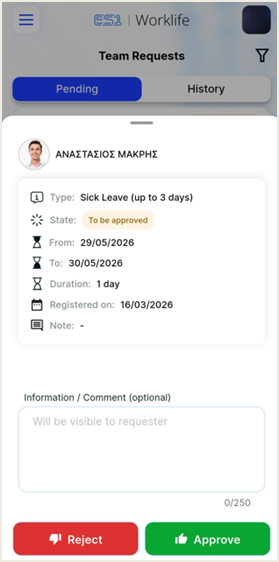
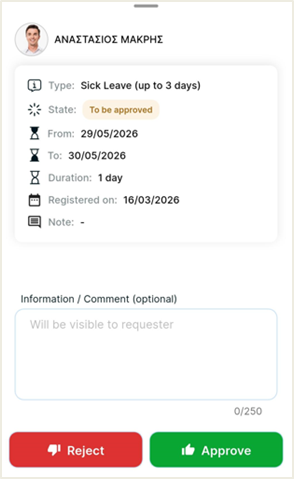
Clicking on any request from the “Pending” list opens a detailed card with all the details.
Carefully check the type of request, the interval (from - to) and any notes that the employee has added.
Before you make a decision, you can optionally enter a comment in the “Information / Comment” field, which will be visible to the employee.
Press Approve (green button) to accept the request or Reject (red button) if the request cannot be accepted.
Bulk Request Management
When you long-press a request to manage it, an option appears on the side to select multiple requests for approval or rejection.