The "Profile" section offers the user a complete picture of his personal, professional and payroll data. The information is organized in discrete tabs at the top of the screen for easy navigation.
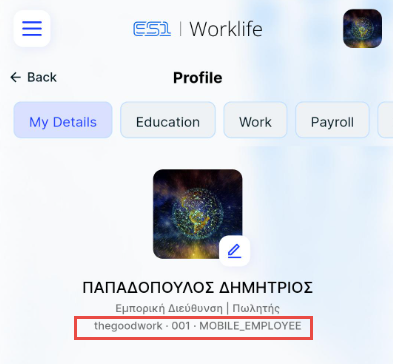
Below the user's photo, the User ID and the subscription type the user is logged in with are displayed. This information makes it easier to contact support in case of a problem, since there is no need to look up the ID elsewhere.
 My details
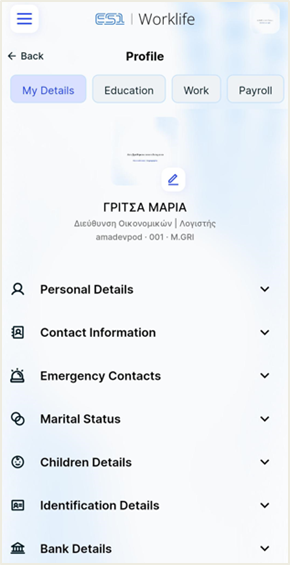
The first tab shows all of the employee’s personal information at a glance. The data is organized into expandable sections:
Personal Details: Main identification details.
Contact Information: Contact phone/email.
Emergency Contacts: Information for contact persons in case of an emergency.
Marital status: Details regarding marital status.
Children Details: Information about the user's children.
Identification Details: Identification details of the user.
Bank Details: The payroll account (IBAN) and the payment bank.
Note that:
By clicking on the pen icon
on the profile photo, you can change your account picture by either selecting a photo from your gallery or taking a photo in the moment.
Education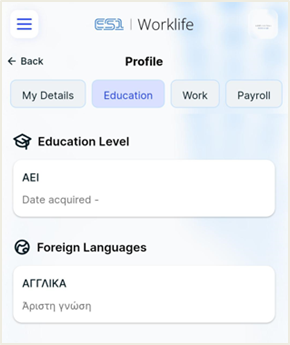
The “Education” sub-section functions as a digital CV within the application, gathering the employee’s academic and language skills.
Education Level: This field indicates the highest academic degree the employee has earned
Foreign Languages: This field displays information about the user's language profile.
Note that:
If you have obtained a new degree or language certification that does not appear in the application, please contact HR to update your file.
Professional Details
The “Work” sub-section provides a complete and official mapping of the employee’s position within the organizational web of the company. These elements are critical, as they define the approval flows, access rights and user responsibilities.
Organizational Structure & Placement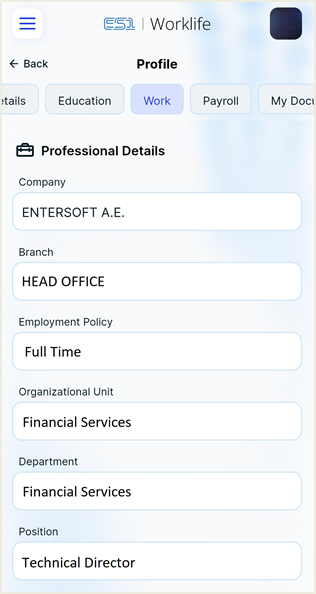
This section presents the exact hierarchical and geographic location of the employee:
Company & Branch: Indicates the legal entity to which the employee belongs, as well as the physical location or headquarters (e.g., Head Office) where the employee is assigned.
Organizational Unit & Department: Specify the general department (e.g. Financial Services) and the specific specialized department. This information facilitates inter-departmental communication and the clarity of roles.
Job Position: Indicates the official title of the position (e.g. Technical Director), which reflects the level of responsibility and the employment subject of the user.
Employment Policy & Status
The conditions under which the work is provided:
Employment Policy: Indicates the employment status, for example if it is a "Full-time Employee, 5-day work schedule". This information is directly related to the calculation of the entitled leave, the working hours and the payroll parameters that the employee sees in the other sections of the application.
Note that:
This data is automatically derived from the Human Resource Management System (HRMS). In case of promotion, department change or transfer to another branch, the changes will automatically appear here as soon as they are finalized by the HR department.
Payroll Data
The “Payroll” tab is designed to provide a direct and detailed picture of the employee’s financial relationship with the company. Through a modern interface, the user can monitor not only their monthly earnings, but also the total value of their benefit package.
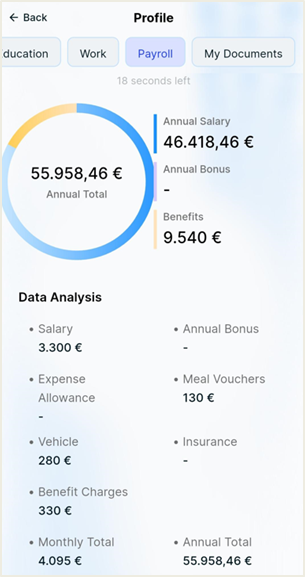 Total Earnings (Annual Figure)
At the top of the screen there is a graphic display (donut chart) that summarizes the Annual Total earnings.
Annual Salary: The total amount of regular earnings for the current year.
Annual Bonus: A consolidated view of extraordinary compensation or rewards.
Benefits: The monetary value of additional benefits (e.g. corporate benefits, allowances), offering a holistic view of remuneration (total compensation).
Data Analysis (Monthly Insight)
Below the graphic illustration, a detailed list is given that breaks the pay into specific categories to better understand the payroll:
Basic Salary: The amount of regular monthly payment.
Mean Vouchers: The amount corresponding to meal vouchers or others, if provided.
Insurance: The planned deductions or contributions.
Other Categories: Information on expenses (expense reports), vehicle use or other charges/credits affecting the final payroll.
Privacy Mode (Hide Amounts)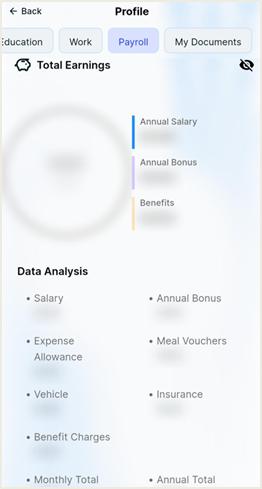
Understanding that payroll information is strictly personal, the application incorporates a “Private View” feature.
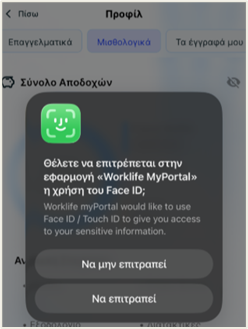 How it works: In the upper right corner of the “Total Earnings” section, there is an “eye” icon
  .
.
When you first select the payroll tab, all amounts appear blurry (blur effect).
When you first select the payroll tab, all amounts appear blurry (blur effect).
By clicking on the icon, all figures (salaries, bonus, analysis) are unblurred only after the user has been authenticated(fingerprint, FaceID, etc.).
By clicking on it again, the amounts return to normal view.
Purpose:
This function is extremely useful when the employee uses the application in public places, in public transport or in the office, ensuring that no third party can see their sensitive financial data.
My documents
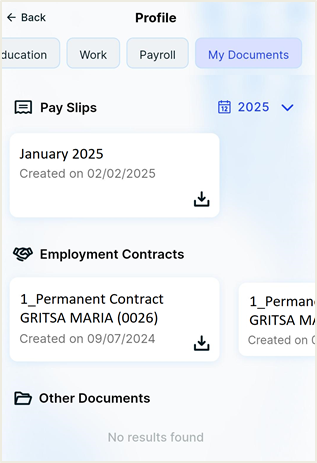 In this section you have direct access to your digital file:
Pay Slips: Ability to search and display monthly receipts per year.
Employment Contracts: Access your signed downloadable contracts directly to your mobile phone.
Other Documents: For other corporate or personal documents relating to your employment relationship.