On the main screen of the “My requests” section, the total number of leave requests you have submitted is displayed chronologically.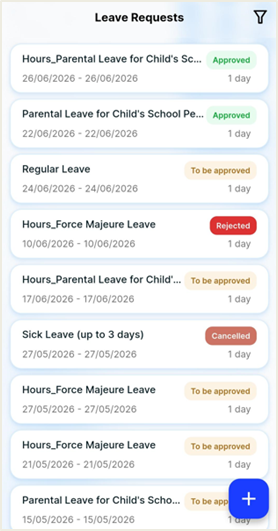
Request Details: Each entry shows the type of leave, the time period (from/to) and the date of submission.
State: On the right of each card there is a color indication for the state of the request: “To be approved” (orange), “Approved” (green), “Canceled” (dark red) or “Rejected” (bright red).
Add new: The blue "+" icon remains available to start a new request process immediately.
To quickly locate specific entries, you can use the filter icon  .
.
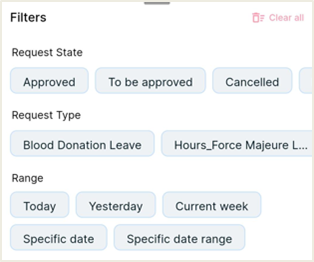 State & Type: You can filter the list by selecting only the requests that are at a specific stage or for a specific type (e.g. only "Regular Leave"). Please note that only the types that the employee has already registered at least once in the past are shown in the "Request Type" selection list.
Time Range: Default options such as "Today", "Yesterday", "Current week", "Specific date" or "Specific date range" are provided to limit the results.
Clean all: For your convenience, the "Clean all" option has been added. This action resets all applied filters to zero at the same time and returns the list to its full, original view without having to de-select each criterion separately.
Overview of a Specific Request
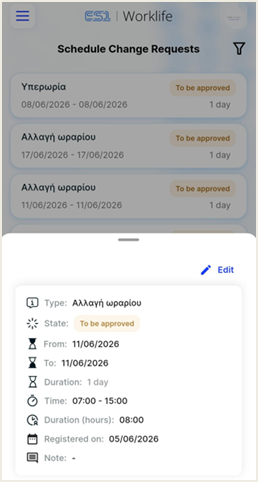
By selecting a request from the list, all of its details are displayed.
You can see request type, the state, the exact dates and the total duration in days.
The notes show the comment you may have added during submission and at the bottom of the screen you can view and download any documents attached (e.g. image or document files), ensuring that all necessary documentation is archived.
Editing: If a request has "To be approved" as state, the user can choose to edit it to make corrections.
The dates (start/end date) of the request may be modified, provided that the data has been changed and additional files or documents (e.g. medical reports, certificates) that may have been received at the initial submission can be attached.
Note that:
The ability to edit ceases to be available once the request changes state (e.g., is “Approved” or “Rejected”). In this case, any change requires contacting HR or submitting a new request.