The dashboard is the central management environment of the ES1 | Worklife application. It is designed to provide direct access to your profile information and the functions you use most often, ensuring an organized and efficient user experience.
Key elements of the screen
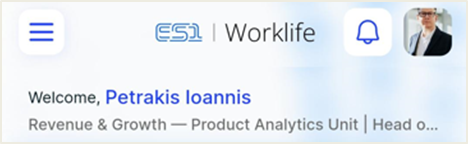
Profile & Role Information: The upper part of the screen shows the employee's name, accompanied by the details of the department and specialty. This section confirms the successful login to your personal account and ensures that the operations you perform correspond to your role within the organization.
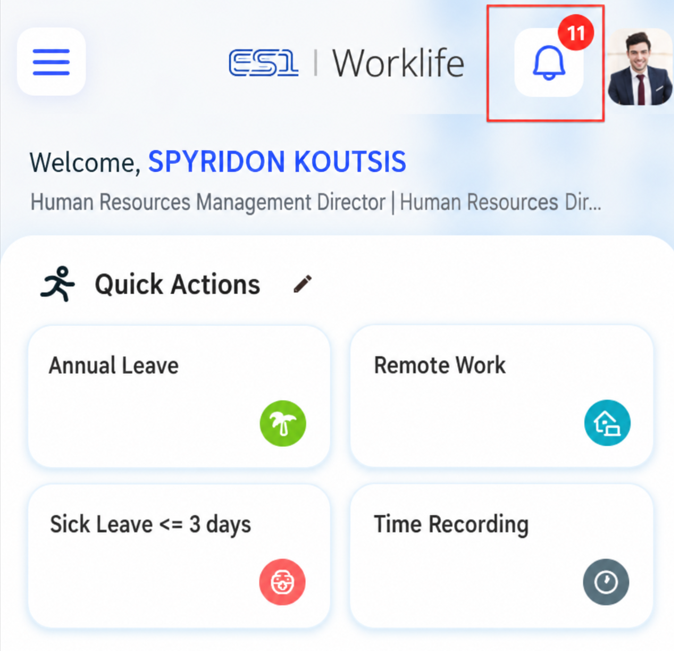
Notification Bell - Team Leader: From the dashboard, team leaders always know how many requests are waiting for them—a number next to the notification icon keeps them updated in real time. Tapping it opens the list of pending requests directly, without any additional navigation steps.
Navigation Main Menu
Application Menu (top left): By clicking on the
 icon, you can access the full range of application services, such as leave and request history, as well as other auxiliary features.
User Tip:
The dashboard acts as the starting point of the application. Wherever you are in the app, you can return here by clicking on the dashboard icon, in order to have immediate supervision of anything pending.
Quick Actions
The “Quick Actions” section is designed for the immediate and effective management of the most frequent work requests. Its purpose is to speed up daily processes, enabling the user to submit requests in minimal steps.
Detailed features of the module:
Leave Management: Through the available options, the user can submit a request, e.g. for regular leave, sick leave, etc. By selecting the corresponding icon, you are taken to the screen meant for adding a new request. This process ensures that the Human Resources department is informed in time and that the leave is automatically added to the plan.
💡 Why can't I see this action?
This action is only displayed if it is enabled parametrically in the application settings.
Pressing the  option displays the Quick Actions modification screen. Its purpose is to allow you to personalize the application's Dashboard, so that you can only access the features you use most frequently. A detailed description of the functionality of this screen can be found in the relevant section “Modifying the Quick Actions”.
Calendar & Request Management
This module is the central control point for individual planning and monitoring of the progress of the requests you have submitted through the application. It allows you to have a direct view of your current work schedule and the state of anything pending.
Details of the module:
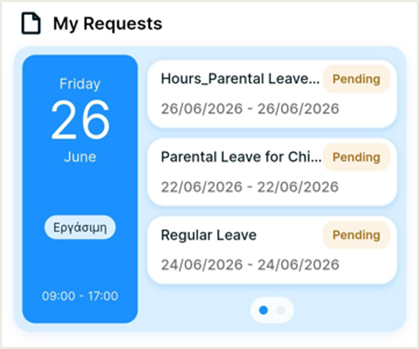
Current Day Information: The left part of the widget shows the current date and scheduled working hours (e.g. 09:00 - 17:00). Your "Working day" indicator confirms the status of the day, allowing you to have a direct view of your mandatory job framework at any time. If you click on the date you are transferred to your Personal calendar.
Managing Requests (My Requests): On the right side of the screen, all submitted requests (such as leave, sick leave, remote work, etc.) are collected and are pending.
Monitoring the State of Pending Requests: This module collects all requests that are currently under process. This feature provides the user with direct and autonomous information on the progress of their requests, eliminating the need for communication with the Human Resources department.
Edit & Review: By clicking on a request card, you can view details such as the exact amount of time and attachments that may accompany it. More details about the requests can be found in the relevant section "My requests".
News & Announcements
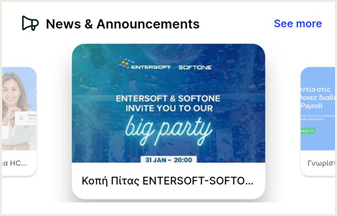
At the bottom of the screen there is a carousel with company news and announcements. The user can click on “More” to view the entire list of updates. A detailed description of the functionality of this screen can be found in the relevant section “News & Announcements”.
Configurable home page
Users can customize the dashboard to suit their needs. At the bottom of the home page, the “Configure dashboard” option appears, and the following changes can be made:
changing the order in which widgets appear using drag & drop,
changing the grid dimensions in Quick Actions so that they can accommodate more or fewer shortcuts, or
hide a widget.